Guide to Google Sheets Checkbox
Learn how to add checkboxes in Google Sheets to create interactive checklists and manage information or tasks effectively.
![[Featured Image] A warehouse manager stands in front of shelves packed with products as they work with the Google Sheets checkbox feature on their laptop.](https://d3njjcbhbojbot.cloudfront.net/api/utilities/v1/imageproxy/https://images.ctfassets.net/wp1lcwdav1p1/yBzomSxhj5Hq1T1GlWeHh/a49ee09a89b2270ec8a4c88144ee61d1/GettyImages-586700278__1_.webp?w=1500&h=680&q=60&fit=fill&f=faces&fm=jpg&fl=progressive&auto=format%2Ccompress&dpr=1&w=1000)
Key takeaways
The Google Sheets checkbox feature is a valuable tool for creating interactive checklists, managing tasks, and tracking progress.
Add checkboxes by selecting the cell range you desire, accessing the Insert menu, and choosing Checkbox.
Customize your checkboxes by resizing the cells or changing formatting, such as adding text or background color.
You can use checkboxes in Google Sheets with charts, filters, and pivot tables.
Use this step-by-step guide to add checkboxes to Google Sheets and learn best practices. Then, consider enrolling in the Google Data Analytics Professional Certificate to build job-ready knowledge and skills. In this Professional Certificate program, you will learn valuable tools such as cloud computing, debugging, data collection, and more.
How to add a Google Sheets checkbox
Here is a quick guide on how to add checkboxes:
Open your Google Sheet.
Highlight the cells in which you want to add the checkboxes.
Navigate to the Insert menu.
Click the Insert > Checkbox button.
Customize your checkboxes.
Now, let’s go over each step in more detail.
1. Open Google Sheets.
To start, open your web browser and Google Sheets. You may need to sign in to your Google account if you receive a prompt to do so.
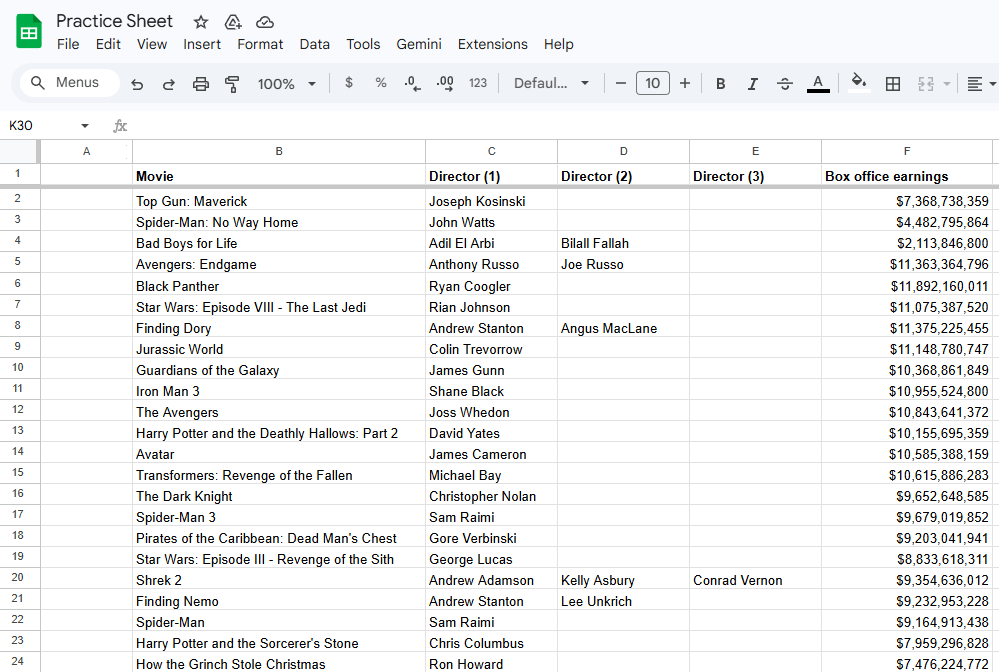
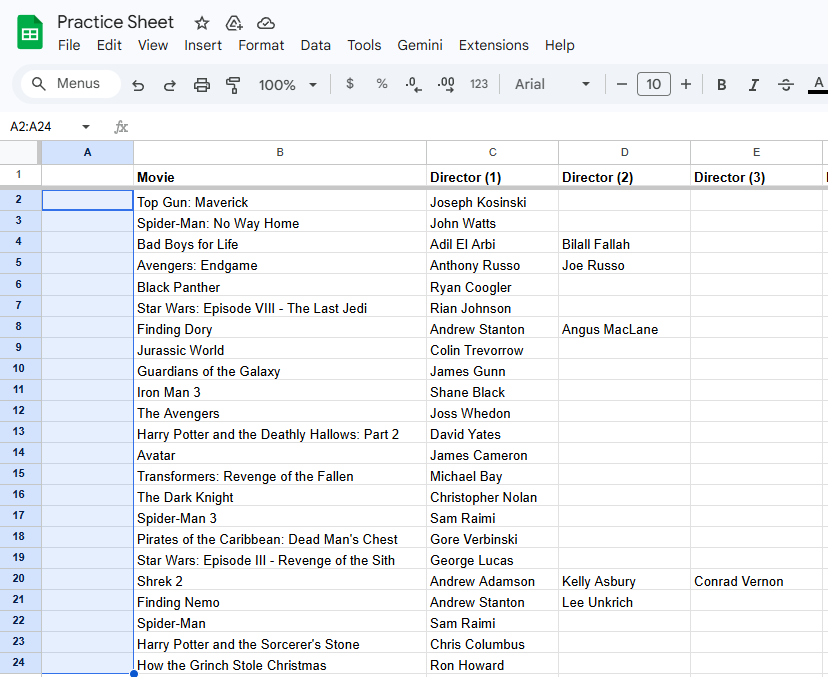
2. Select the cell range.
Choose the span of cells where you want to add checkboxes. Depending on your requirements, you can select a single cell or choose multiple cells.
3. Access the ‘Insert’ menu.
Locate the Insert option at the top menu and click it. A drop-down menu with various insertion options will appear.
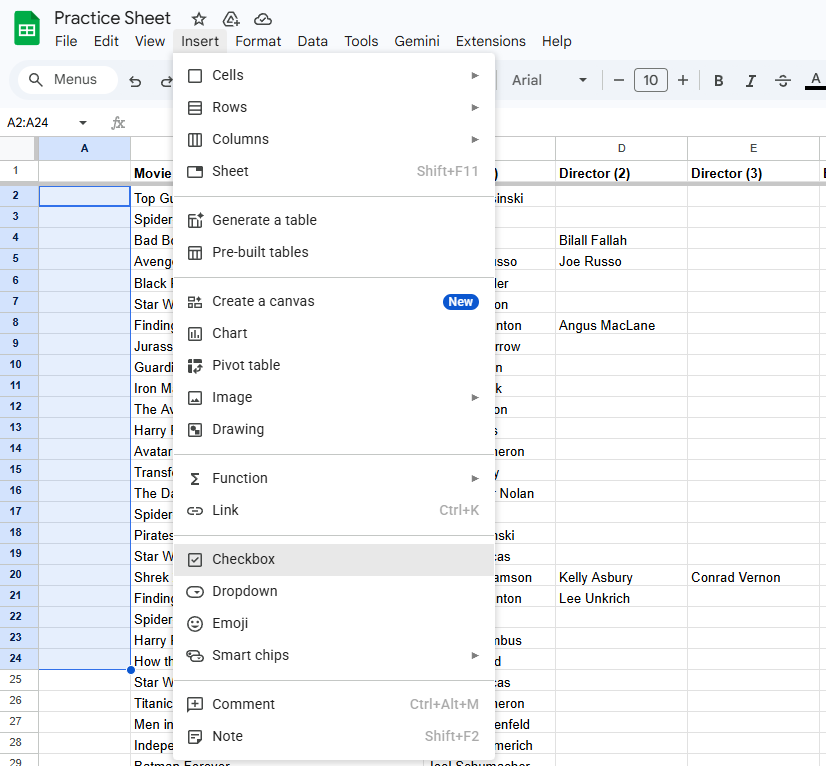
4. Choose ‘Checkbox.’
From the Insert menu, hover over the Insert > Checkbox option and click on it. This action inserts a checkbox into each selected cell.
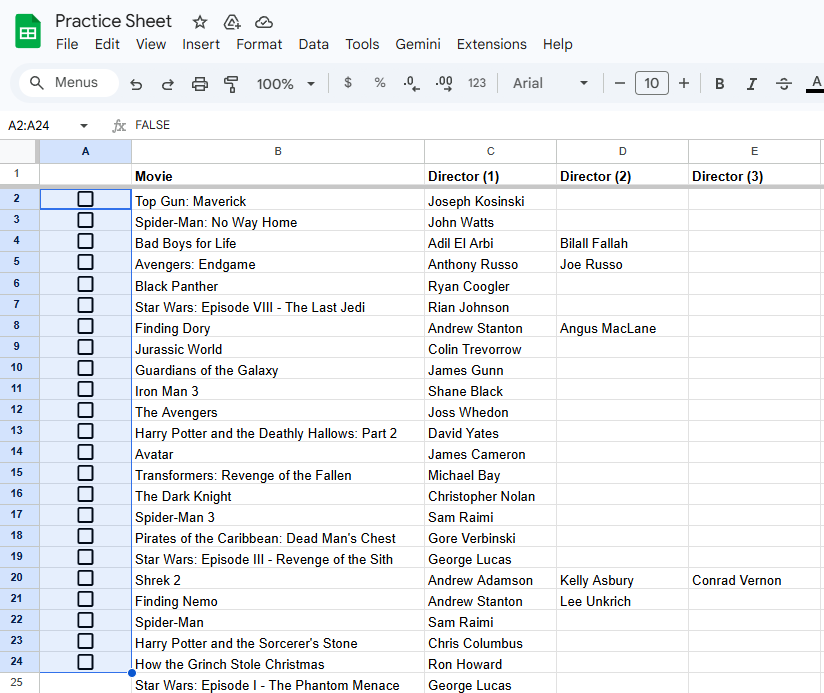
5. Customize checkboxes (optional).
You can customize the checkboxes to suit your preferences or specific needs:
Resizing: Adjust the size of the checkboxes by dragging the edges of the cell.
Formatting: Apply formatting styles, such as font color or cell background color, to differentiate between completed and pending checkboxes.
Read more: How to Use Data Validation in Google Sheets
Managing checkboxes
To mark a checkbox as complete or incomplete, simply click on it. The checkbox will toggle between the checked (complete) and unchecked (incomplete) states.
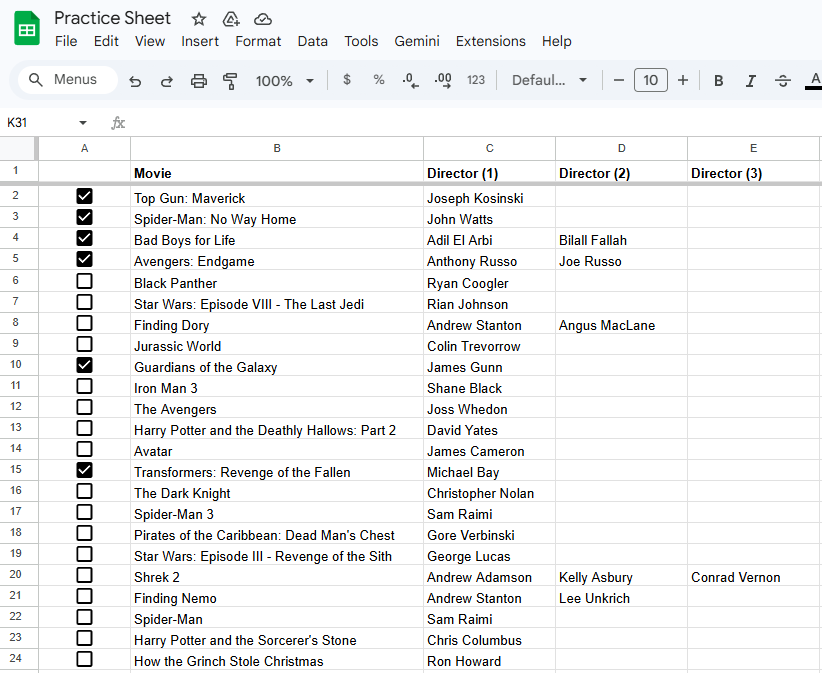
Additional considerations
To remove checkboxes, select the cells for the checkboxes you want to remove, and press delete. You can use checkboxes in a wide range of functions. For example, you might use them with charts, filters, or pivot tables.
Limitations of Google Sheets checkboxes
When it comes to adding checkboxes in Google Sheets, be aware that the checkbox will replace the text in any highlighted cells. This means that if you have text in the cells you highlight, this text will be deleted, leaving you only with the checkbox. To add a checkbox next to a column or row with existing text, insert a new column or row and highlight the empty cells to add the checkboxes.
No-fluff help for when you're stuck
If you’re interested in expert guidance and tips to help you build your skills, subscribe to our YouTube channel. You can also explore additional Google Sheets resources to streamline your work and learn new skills:
Follow a tutorial: How to Use Data Validation in Google Sheets
Find a course: How to Start Learning Data Analysis: Custom Course Guide
Watch on YouTube: How to Highlight Duplicates in Google Sheets
Whether you want to develop a new skill, get comfortable with an in-demand technology, or advance your abilities, keep growing with a Coursera Plus subscription. You’ll get access to over 10,000 flexible courses.



Keep reading
- December 1, 2025
- November 18, 2025
- June 20, 2026
- January 13, 2026
- April 3, 2026
- January 13, 2026
Coursera Staff
Editorial Team
Coursera’s editorial team is comprised of highly experienced professional editors, writers, and fact...
This content has been made available for informational purposes only. Learners are advised to conduct additional research to ensure that courses and other credentials pursued meet their personal, professional, and financial goals.